PLC for Forming of Spiral for Binding Machine


See Simulation : Forming of Spiral for Binding Machine
Simulation Forming of Spiral for Binding Machine

Coil Spiral Binding used in the Book :
Coil Spiral Binding in Book

Detail Forming of Spiral for Binding Machine :
Detail Spiral Forming Binding Machine

Notes :
LS = Limit Switch or Micro Switches for the Detection of Wire Out.

Number Of Inputs and Output PLC applied :
1. Number Of Inputs PLC is 4 Input :
--- 1 Unit Input for Push Button Start.
--- 1 Unit Input for Push Button Stop.
--- 1 Unit Input for Micro Switches Wire Out.
--- 1 Unit Input for Motor Feedback Alarm.
--- Total Number Of Inputs PLC is Minimum 4 Input Unit.

2. Number Of Output PLC is 2 Output :
--- 1 Unit Output for Speed Control Motor ( ON / OFF Motor ) .
--- 1 Unit Output for Single Solenoid. It's Functions to Pneumatic Cylinder Wire Cutter ON ( Normally Cutter OFF).
--- Total Number Of Outputs PLC is Minimum 2 Output Unit.


Sequence PLC Programming for Spiral Binding Forming Machine :

Step 1 :
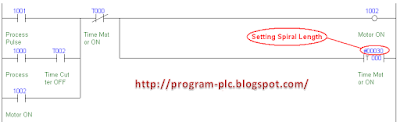
a. If Push Button Start = ON Then Speed Control Motor = ON.
b. If Speed Control Motor = ON And Timer0 = ON Then Speed Control Motor = OFF.
c. If Timer0 = ON And Speed Control Motor = OFF Then Wire Cutters = ON.
d. If Wire Cutters = ON And Timer1 = ON Then Wire Cutters = OFF.
e. If Wire Cutters = OFF And Timer2 = ON Then Speed Control Motor = ON.
f. Continuous Process.
--- Download Simulation : Spiral Binding Forming Machine

Step 2 :
a. If Push Button Stop = ON Then Stop Process.
b. If Micro Switches = OFF Or Motor Feedback Alarm = OFF (Normally ON) Then ALL System OFF.
c. Data Set Value Timer0 = 3 Second ( Data Setting = 3 second (Can be Changed) ) for Spiral Length.


Can You make Program Ladder PLC ?

If Can't :

PLC Omron Programming Spiral Binding

PLC Mitsubishi Programming Spiral Binding

PLC Keyence Programming Spiral Binding

Upload Program PLC Mitsubishi to PC


For Upload Program Ladder From >PLC Mitsubishi to PC, Step by Step :
Step 1
Software PLC Mitsubishi, Open Software GX Developer
1.1. Click Online --> Click Read From PLC ...
Online Read From PLC
OR
1.2. Click Icon Read From PLC
Icon Read From PLC
Step 2
Select PLC Series --> Click OK Button
Select PLC Series
Step 3
Please Click : Communication Settings PLC Mitsubishi

Step 4
Show Menu Connection Setup --> Click OK Button
Menu Connection Setup
Step 5
*). Show Menu Read from PLC
*). Click Param+Prog Button --> Click Execute Button
*). Show Dialog Box "Execute read from PLC" --> Clock Yes Button
Menu Read from PLC
Step 6
Waiting Reading.. Parameter
Waiting Reading.. Program MAIN
Reading Program MAIN
Step 7
*). Show Dialog Box "Completed." --> Click OK Button
*). Click Close Button from Menu Read from PLC
Dialog Box Completed
Process Read from PLC has Been Finish
Step 8
*). For Save Program Ladder --> Click Icon Save or ( Ctrl + S )
*). Show Dialog Box "Save the project with a new name"
*). Select Project drive ---> Type Project name ---> Click Save Button
*). Show Dialog Box "The specified project does not exit. Do you wish to create a new project ?"
*). Click Yes Button
Save the project with a new name

Please Download Video :
Upload Program PLC Mitsubishi to PC

Communication Settings for PLC Mitsubishi on PC


For Communication Setting for PLC Mitsubishi on Software PLC GX Developer, Step by Step :
Step 1
Open Software PLC Mitsubishi GX Developer
Software PLC Mitsubishi GX Developer
Step 2
Click Online --> Click Tranfer setup ...
Online Tranfer setup
Step 3
Show Menu Connection Setup
Click icon Serial
Show Dialog Box " PC side I/F Serial setting"
Icon Serial
Step 4
Show Dialog Box " PC side I/F Serial setting"
Select COM Port --> Select Transmission speed --> Click OK Button
PC side I/F Serial setting
Step 5
Display Menu Connection Setup
Click Connection test Button
If Communication OK Then Show Dialog Box "Successfully connected with the .... ( PLC Type )---> Click OK Button
Display Menu Connection Setup ---> Click OK Button
Successfully connected

Please Download Video :
Communication Settings for PLC Mitsubishi on PC

Download Program to PLC Mitsubishi


For Download Program Ladder Diagram from PC to PLC Mitsubishi, Step by Step :
Step 1
Software PLC Mitsubishi, Open Software GX Developer
Software GX Developer
Step 2
Click Project --> Click Open Project... ( Ctrl + O)
And Show Open Dialog
Click Open Project
OR
Step 2
Click Icon Open Project
And Show Open Dialog
Click Icon Open Project
Step 3
If Show Open Dialog Then Select Project Name -->
After the Porject Name has been Selected -->
Click Open Button
Select Project Name
Step 4
If Lader Diagram is Open Then :
Click Online --> Click Write to PLC ...
Write to PLC
Step 5
Menu Write to PLC
Click Param+Prog --> Click Execute Button
Show Dialog Box "Execute write to PLC" --> Click Yes Button
Execute write to PLC
Step 6
Menu Write to PLC
Waiting Write to PLC -->
Writing... Parameter --> Writing... Program MAIN
Waiting Write to PLC
Step 7
Menu Write to PLC
Show Dialog Box "Completed." --> Click OK Button -->
Click Close on Menu Write PLC
Process Write to PLC has been Finish
Close on Menu Write PLC
Please Click : Communication Settings PLC Mitsubishi


Please Download Video :
Download Program to PLC Mitsubishi

Communication Settings for PLC Keyence on PC


For Communication Setting for PLC Keyence on Software PLC KV Builder, Step by Step :
Step 1
Software PLC KV Builder
Step 2
Click Monitor/Simulator(M) --> PLC communications parameter setup(T)...
--> Click Serial port(S)...
PLC communications parameter setup
Step 3
Select COM port(C) and Select Baud rate(B) --> Click OK Button
Serial Port COM Setup

Please Download Video :
Communication Settings for PLC Keyence on PC

Upload Program PLC Keyence to PC


For Upload Program Ladder From PLC Keyence to PC, Step by Step :
Step 1
Open KV BUILDER
Open KV BUILDER
Step 2
Click Monitor/Simulator(M) --> Click PLC monitor(M) or Ctrl + F1
PLC Monitor Simulator
Step 3
Select PLC Type --> Click OK Button
Select PLC Type
Step 4
Waiting Reading Program
Step 5
PLC Monitor Mode
PLC Monitor Mode
Step 6
Click Icon Editor or Ctrl + F1
Click Icon Editor
Step 7
Editor Mode
For Save Program Ladder --> Click Icon Save Ladder Diagram (Ctrl + S)
Save Ladder Diagram
Step 8
Select Directory(F) for Save --> Input Project Name --> Click Save Button
Input Project Name
Please Click : Communication Settings PLC Keyence

Please Download Video :
Upload Program PLC Keyence to PC

Download Program to PLC Keyence


For Download Program Ladder Diagram from PC to PLC Keyence, Step by Step :
Step 1
Open KV BUILDER
Open KV BUILDER
Step 2
2.1. Click File or ALT + F
Click File or ALT + F
2.2. Open Ladder or Ctrl + O
And Show Open Dialog
Open Ladder or Ctrl + O
OR
Step 2
Click Icon Open Lader Diagram ( Ctrl + O)
And Show Open Dialog
Open Lader Diagram
Step 3
If Show Open Dialog Then Select File Project --> After the File has been Selected --> Clik Open Button
File Project Selected
Step 4
If Lader Diagram is Open Then :
Click Monitor/Simulator(M)
Monitor Simulator (M)
Step 5
Click Convert->Move->Monitor(W).. Ctrl+F8
Convert Move Monitor (W)
Step 6
Waiting Move Program to PLC
Move Program to PLC
Step 7
Finish with PLC Monitoring
PLC Monitoring
Please Click : Communication Settings PLC Keyence

Please Download Video :
Download Program to PLC Keyence

Simulation How to Work Timer for PLC Keyence


How to Work Timer With Scan PLC :
How to Work Timer Scan 1 :
Input 0000 = OFF , Input 0001 = OFF, RES T000 = OFF, Present Value (PV) Timer = #00020, Setting Value (SV) = #00020 and T000 = OFF Or Output 0500 = OFF.

How to Work Timer plc Keyence scan 1

How to Work Timer Scan 2 :
Input 0000 = ON , Input 0001 = OFF, RES T000 = OFF, Present Value (PV) Timer = #00020 to Time Down to #00000 ( Zero ) and T000 = OFF Or Output 0500 = OFF.


Time Up at 1.2 seconds

How to Work Timer plc Keyence Time Up at 1.2 seconds

Time Up at 0.5 seconds

How to Work Timer plc Keyence Time Up at 0.5 seconds

How to Work Timer Scan 3 :
Input 0000 = ON , Input 0001 = OFF, RES T000 = OFF, Present Value (PV) Timer = #00000 ( Zero ) and T000 = ON Or Output 0500 = ON.

How to Work Timer plc Keyence scan 3

How to Work Timer Scan 4 :
Input 0000 = OFF ( Reset Timer ), Input 0001 = OFF, RES T000 = OFF, Present Value (PV) Timer = #00020 and T000 = OFF Or Output 0500 = OFF.

How to Work Timer plc Keyence scan 4
OR

Input 0001 = ON ( Reset Timer ) , RES T000 = ON , Present Value (PV) Timer = #00020 and T000 = OFF Or Output 0500 = OFF.

How to Work Reset Timer plc Keyence scan 4

Simulation How to Work Timer PLC Keyence
Sponsored Links :

ALL ARTICLES
SUBSCRIBE BY EMAIL:

Delivered by FeedBurner


PLC Simulation Update

Popular Posts

Free Download PLC

Custom Search
Copyright © PLC Ladder