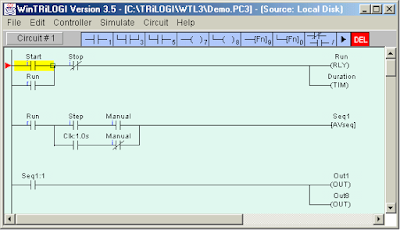
PLC as a System Control


Programmable logic controllers (PLCs) are modular, industrially hardened computers which perform control functions through modular input and output (I/O) modules. The modularity of PLC allows the user to combine generic I/O modules with a suitable controller to form a control system specific to his is most simply understood needs. The operation of a controller by envisioning that it is repeadly performs three steps:
1. Reads inputs from input modules.
2. Solved reprogrammed control logic.
3. Generates outputs to output modules base on the control logic solutions. Input and output devices of the process are connected to the PLC and the control program is entered into PLC memory.
PLC System Control
In application, it controls through analog and digital inputs and outputs the varying load constant speed operation of an inductor motor. Also, the PLC continuously monitors the inputs and activates the outputs according to the control program. The PLC system is of modular type composed of specific hardware building blocks (module). Which plug directly into a proprietary bus: a Central Processor Unit (CPU), a power supply unit, input-output modules I/O and a program terminal. Such a modular approach has the advantage that the initial configuration can be expanded for other future applications such as multi machine systems or computer linking.

Ethernet IP for RSControlLogix 5000 Start Guide


The RETA-01 adapter module is required to support communications when using Ethernet IP to communicate between an RSLogix 5000 PLC and the PS200.

1. Install the RETA-01 fieldbus module in option slot 1 of PS200. Be sure to use the fixing screws for proper ground bonding. Module power and signal connections are automatically made.
RETA-01 adapter module
2. Connect the Ethernet cable (RJ-45 connector) to the RETA-01 module, connector X1. Standard CAT 5 UTP or STP cables can be used. Avoid parallel runs with power (e.g. motor) cables.
3. Power up the drive. The “Module Status” led should be green. If the network cable is connected to an active network, the “LINK/ACTIVITY” led should also be solid or blinking green. The “Network Status” led will be steady green if the DCS/PLC has an Ethernet connection open against the drive.
4. Enter the proper pass code into the PS200 and go to parameter group 30. Be sure parameter 30.01shows “fieldbus”. Change parameter 30.03 to “CSA2.8/3.0”. St Up parameter group 31. Once group parameters are entered you must use parameter 31.27 to refresh the module or the new parameters will not take affect. Another way to refresh the module is to cycle power.
5. Set up PumpSmart for the type of process control required. Be sure to define all parameters being written to via EthernetIP to “Fieldbus”. Example include:
12.01 START/STOP
12.11 SPEED OVERRIDE
12.13 SPEED OVERRIDE REF
16.01 SET / SET 2 SELECT
16.02 SETPOINT 1 SELECT
16.03 SETPOINT 2 SELECT
ETC.
EthernetIP to Fieldbus

IWS Interface for PLC Allen-Bradley ControlLogix 5000


This article will describe the interfaces provided by InduSoft Web Studio (IWS) to exchange data with ControlLogix PLCs from Allen-Bradley:
• IWS for RSLogix5000 CSV database : using this tool user can import the tag names and the communication setting from the PLC program. IWS create not only the tags in the application tags database but also the communication driver worksheet automatically. This interface reduces dramatically the time invested to integrate the SCADA/HMI software with the ControlLogix PLC and reduces the configuration errors.
• ABCIP Communication Driver: this driver implements the CIP protocol over Ethernet/IP and exchanges data with the ControlLogix PLC during the runtime, using the tag names configured in the PLC project.

IWS enables you to create or add to Tags database by importing taj=gs froman external application database, including:
• OPC server databases.
• ODBC databases.
• CXV databases.
• PanelBuilder Import Wizard.
• RSLogix 5000 CSV databases (including Allen-Bradley RSLogix CSV files).

When you select File-->Import Wizard, an Import Wizard dialog displays to walk you through the process of importing tags:
importing tags
To begin you must specify the type of database source you are going to use.
• Select RSLogix 5000 CSV from the source type list, and then click the Next button.
• When the next Wizard screen displays, click a radio button in the Option pane to specify of the following options:
import RSLogix 5000
This interface allows the user to import the Tags Database and the communication interface configuration form the ControlLogix/FlexLogix PLC program files.

Mini Programmable Logic Controllers


The project configuration using RSLOGIX 5000 programming software:
• Tags Database: Open the PLC project with RSLogix 5000 programming software. Right click on the controller tags folder and choose the Export Tags option from pop-up menu. Make sure to select RSLogix 5000 Import/Export File(*.CSV) option on the Save as Type combo box and the All tags in project in the scope box. Click the Export button to create the CSV file with tags database configuration.
• User-Define Tags: Open the PLC project with RSLogix 5000 programming software. Select File-->Save as from the main menu. Make sure to select RSLogix 5000 Import/Export File (*.L5K) option in the Save as type box. Click the Save button to create the L5K file with the User-Defined Tags configuration.

The ABCIP driver enables communication between IWS and the Allen Bradley ControlLogix PLC with the 1756-ENET interface for Ethernet communication. The ABCIP supports routing communication for two levels. You can exchange data with ControlLogix PLC directly connected in the rack where the 1756-ENET module is connected, or you can address other PLCs connected to the ControlLogix rack via:
• 1756-ENET: Communication interface for Ethernet/IP protocol.
• 1756-DHRIO: Communication interface for DH+ or remote I/O (RIO).
• 1756-CNB: Communication interface for ControlNet.

ControlLogix CPU directly connected where the 1756-ENET interface is connected as shown in picture below:
ControlLogix CPU directly
The following picture is the ABCIP driver to access remote PLC connected in Ethernet/IP, DH+, RIO or ControlNet networks, via the 1756-ENET interface module:
access remote PLC connected

Learning the RSLogix 5000 System


While the manufacturing wants to convert the RSLogix500 to RSLogix5000, it was decided that to fully assess the benefits of applying RSLogix5000 to a real world manufacturing process, some of the code must be transcribed from its RSLogix500 form into the RSLogix5000 format. This was done into two steps. The first step was to decide which part of the machine code would demonstrate the greatest contrast between the two software platforms. And second step was the actual implementation of the new programming language.

The first step took considerable thought due to the vast possibilities of RSLogix5000’s four programming languages that are available. Each language is best suited, but not limited to, specific electro-mechanical functionality. For example, Ladder logic, which was the sole programming option with the RSLogix500 software, is bested suited for:
• Execution of continuous or parallel operations.
• Binary operations.
• Logical operations that are complex.
• Processing of messages and other communications.

The function block diagram programming language can be used for:
• Drive control and continuous processes.
• Control loops.
• Circuit flow calculations.

The sequential function chart (SFC) programming language work well in the following situations:
• Managing multiple operations at a high level.
• Processes that are batched.
• Motion control.
• Sequential machine operations.

Finally, the structured text programming language can be used in combination with some of other RSLogix5000 programming languages. Rockwell Automation states in Logix5000 Controllers Common Procedures Programming Manual that it is suited for:
• Complex mathematical operations.
• Specialized array or table loop processing.
• ASCII string handling or protocol processing.

The Advantages of Allen-Bradley RSLogix 5000 in Manufacturing


In the vast world of automated manufacturing programmable logic controller (PLC) are one of the most reliable and effective means of controlling any electro-mechanical process. One of the manufacturing that using PLC is a high strength pultruded fiberglass reinforced polymer composites. Previously this manufacturing was using RSLogix500, but now there is the latest of Rockwell PLC software that is RSLogix5000.

RSLogix5000 is the latest in the Allen-Bradley series of PLC software. RSLogix5000 uses one software package consisting of four styles of programming languages: Ladder logic, structured text, function block diagrams, and sequential function charts. These programming languages can be used for control process, drives, sequential, and motion control. This system allows the user create command labels through a tag-based platform.

The parameters for that command can be specified to be a bit, integer, etc. Rockwell Software has stated the following about the RSLogix5000 platform:
• Intuitive and simple to use.
• Compliant IEC1131-3 interface.
• Structured programming by way of symbols and arrays.
• Instruction set supplying multiple applications.
• Integrates DCS systems or single-loop controllers and dedicated servo or drive systems into one environment.
• Online troubleshooting capabilities.
• Ability to create new tags while online.
There are still have others advantages of RSLogix5000.

Calling and Initializing Function Block of PLC135 WB


Function Blocks (FBs, FXs) are present only once in memory. They can be called once or more by a block and different parameters can be used for each call. Function blocks are programmed are called by specifying a block number (FB 0 to 255 or FX 0 to 255). A function block call can be programmed in an organization, sequence or program block or in another function block. A call comprises the call statement

JU FBn, DO FXn is unconditional call.
JC FBn, DOC FXn is conditional call.
Unconditional call is the function block executed without regard to the RLO.
Conditional call is the function block executed only if the previous result of logic operation is zero (RLO=1).

The parameter list may content no more than 40 variables. The variables from the parameter list replace the formal parameters when the function block is executed. The programmer monitors the order in which the variables are entered in the parameter list.

The programmer automatically generates, but does not display, the jump statement that follows the FB call. The FB call reserves two words in program memory, and each parameter one additional word. The identifiers for the function block’s inputs and outputs and the name of function block are displayed on the programmer when the user programs the function block.

It is therefore necessary that all required function blocks either be resident as function macros in the PLC basic programming.

Programming Data Block of PLC 135 WB


The data required by the user program is stored in data block (DBs and DXs). No STEP 5 operations are programmed in these blocks. Data can be following types:
• Arbitrary bit patterns, e.g., for plant status indications.
• Numbers (Hexadecimal, binary, decimal)
• Alphanumeric characters.

Generation of a data block on the programmer begins by specifying a data block number between 1 and 255. DW 0 to DW 255 can be addressed via load and transfer operations. Data words > 255 can be addressed using O B180.

One word is reserved in program memory for each data word. The programmer also generates a block header for each data block, the header takes up five words in program memory. Data blocks DB 2, 3 and 4 are interface blocks between the NC and the PLC 135 WB. The programmer prevents deletion and modification of these blocks. Below is a structure of data block.
structure of data block
Data block can be called unconditionally only. Once called, a data block remains in force until the next is invoked. User data blocks must not conflict with those required by the system.

A data block can be programmed in an organization, program, function or sequence block. The “C DB xxx” or “CX DX 200” command calls a data block. Below is example of transferring the content of data word 1 of data block 10 to data word 1 of data block 20.
Data block

Maple OIT Communication with Siemens SIMATIC TI305 Series PLC


The Maple OIT should be connected to the communication port located on the CPU module of the OLC or through the Data Communication Module (DCU). A Siemens cable assembly is required for connection of the OIT to the PLC.

Maple OIT is compatible with Siemens SIMATIC TI305 Series which the PLC models are TI335, TI330, and TI325.

Some versions of the Siemens SIMATIC TI305 PLC have a turnaround delay setting which is set either in the DCU module or in the data register. Because the setting affects communications speed with the OIT, it should always be set to 0. The password must match the Password setting in OITware.

The following table lists the PLC register memory ranges that Maple’s OITs are able to access. Your PLC’s memory range may be smaller or larger than that supported by Maple’s OIT. The below PLC register memory is displayable in 16 bit or 32 bit format.
PLC register memory
The following table lists the PLC discrete memory ranges that Maple’s OITs are able to access. Your PLC’s memory range may be smaller or larger than that supported by Maple’s OITs. The following discrete PLC memory is displayable in single bit and bank format in the Maple OIT.
PLC bit address

Structure Programming of PLC 135/WB/WB2/WD


PLC 135/WB/WB2/WD is a powerful interface controller for process automation (controlling, reporting, monitoring). It is integrated in the SINUMERIK 88-/880 GA2 and SINUMERIK 840C numerical control and controls machine related functional sequences.

The system program of PLC 135 contains all statements and declarations for internal system functions. The basic program has a flexible interface to the system program and contains pre-tested function blocks written in STEP 5 and assembled to form function macros.

The structure of the PLC 135/WB/WB2/WD makes structure programming essential. The program must be divided into individual, self contained section called blocks. This methods offer following advantages:
• Easy, Lucid programming, even of large programs.
• Easy standardization of program sections.
• Simple program organization.
• Simple program testing.
• Fast, easy modification.
• Easy start up.

A number of block types, each of which is used for different tasks, are available for structuring the user program:
• Organization Blocks, they serve as interface between operating system and user program.
• Program Blocks, they are used to break the user program down into technologically oriented sections.
• Function Blocks, they are used to program frequently recurring complex functions.
• Sequence Blocks, they are special forms of program blocks used primarily for processing sequencers.
• Data Blocks, they are used for storing data or texts, and differ in both function and structure from all other block types.

Timer Countdown with PLC


Simulation Timer Countdown

Timer Countdown


Detail Timer Countdown with PLC

Timer Countdown
Information on Drawing Numbers for Timer Countdown with PLC :
1. Timer Countdown with Two 7 Segment
2. PLC or Programmable Logic Controller
3. Toggle Switch ( ON - OFF )
4. Lamp to signal countdown completion

Two Seven Segment and PLC Output

two Seven Segment and PLC Output

Information for One Seven Segment to PLC :
1. one 7 Segment
2. common anode seven segment
3. common cathode seven segment

Number Of Inputs and Output PLC applied :
1. Number Of Inputs PLC is 1 Input :
--- 1 Unit Input for Toggle Switch ( ON - OFF ).
--- Total Number Of Inputs PLC is Minimum 1 Input Unit.

2. Number Of Output PLC is 15 Output :
--- 14 Unit Output for two Seven Segment.
--- 1 Unit Output for Lamp to signal countdown completion.
--- Total Number Of Outputs PLC is Minimum 15 Output Unit.


Sequence PLC Programming for Timer Countdown :

1. Timer Countdown Display starts from 30 seconds
-> If Toggle Switch = OFF Then Timer Countdown display = 30.

2. Count down from 30 seconds to 00 seconds
-> If Toggle Switch = ON Then Timer Countdown display = count down from 30 seconds to 00 seconds.

3. After 00 seconds then Lamp: ON
-> If Timer Countdown display = 00 Then Lamp = ON.

4. Reset for Timer Countdown
-> If Toggle Switch = OFF Then Timer Countdown display = 30 And Lamp = OFF.

Download Simulation Timer Countdown with PLC :
Please Click : Timer Countdown with PLC


Can You make Program Ladder PLC ?

If Can't :

Timer Countdown with PLC Omron

Timer Countdown with PLC Mitsubishi

Timer Countdown with PLC Keyence

Configure Analog Input and Digital Output of Allen-Bradley PLC5


Below is the example to configure a tag that reads the analog inputs from the N7 range of registers:
1. Open Internet Explorer.
2. Connect to project node.
3. Start WebAccess Configuration.
4. Select your project.
5. Select SCADA node.
6. Select the Allen-Bradley PLC5 or SLC500 Device.
7. Select Add Tag.
configure tag Allen-Bradley PLC5
8. From parameter pull down list select the N parameter.
9. Select ALARM from the ALARM pull down list.
10. Enter a tag name users can use to identify this analog input measurement.
11. Edit the Address to the actual address.
12. Enter a description.
13. Optionally enter, Scaling, Span Hi, Span Low, Engineering units, Alarm, enable data logging, etc.
14. Press submit.

And below are the instruction steps to configure a Digital Output Tag.
1. Select the Allen-Bradley PLC5 Device.
2. Select Add Tag.
3. From parameter pull down list select DO.
4. Select ALARM from the Alarm Pull down list. Wait for the page to update with a Pink highlight around alarm.
configure Digital Output Tag Allen-Bradley PLC5
5. Enter a Tag name users can use to identify this Digital Output measurement.
6. Edit the address to actual address.
7. Enter a description.
8. Optionally enter, State0 description, State 1 description, Alarms, enable data logging, etc.
9. Press submit.

Seven Segment Display With PLC Omron


PLC Type Series-CV Omron , Name Input / Output PLC :

INPUT PLC :
0000.00 ; Push Button Switch ( without lock ).

OUTPUT PLC :
0005.00 ; OUT0 or Seven Segment A.
0005.01 ; OUT1 or Seven Segment B.
0005.02 ; OUT2 or Seven Segment C.
0005.03 ; OUT3 or Seven Segment D.
0005.04 ; OUT4 or Seven Segment E.
0005.05 ; OUT5 or Seven Segment F.
0005.06 ; OUT6 or Seven Segment G.

PLC Programming for Seven Segment Display With PLC Omron
Reading Ladder PLC Programming for Seven Segment Display with PLC Omron :

Step 1 :
Increments the memory data specified by the operand by 1
a.If 0000.00 = ON Then Increment D00000 ( Diff Up INC / Differentiate Up Increment).

Step 2 :
a.If D00000 = 0 Then 0010.00 = ON.
b.If D00000 = 1 Then 0010.01 = ON.
c.If D00000 = 2 Then 0010.02 = ON.
d.If D00000 = 3 Then 0010.03 = ON.
e.If D00000 = 4 Then 0010.04 = ON.
f.If D00000 = 5 Then 0010.05 = ON.
g.If D00000 = 6 Then 0010.06 = ON.
h.If D00000 = 7 Then 0010.07 = ON.
i.If D00000 = 8 Then 0010.08 = ON.
j.If D00000 = 9 Then 0010.09 = ON.

Step 3 :
a.If 0010.00 = ON Then 0005.00 = ON And 0005.01 = ON And 0005.02 = ON And 0005.03 = ON And 0005.04 = ON And 0005.05 = ON.
b.If 0010.01 = ON Then 0005.01 = ON And 0005.02 = ON.
c.If 0010.02 = ON Then 0005.00 = ON And 0005.01 = ON And 0005.03 = ON And 0005.04 = ON And 0005.06 = ON.
d.If 0010.03 = ON Then 0005.00 = ON And 0005.01 = ON And 0005.02 = ON And 0005.03 = ON And 0005.06 = ON.
e.If 0010.04 = ON Then 0005.01 = ON And 0005.02 = ON And 0005.05 = ON And 0005.06 = ON.
f.If 0010.05 = ON Then 0005.00 = ON And 0005.02 = ON And 0005.03 = ON And 0005.05 = ON And 0005.06 = ON.
g.If 0010.06 = ON Then 0005.00 = ON And 0005.02 = ON And 0005.03 = ON And 0005.04 = ON And 0005.05 = ON And 0005.06 = ON.
h.If 0010.07 = ON Then 0005.00 = ON And 0005.01 = ON And 0005.02 = ON.
i.If 0010.08 = ON Then 0005.00 = ON And 0005.01 = ON And 0005.02 = ON And 0005.03 = ON And 0005.04 = ON And 0005.05 = ON And 0005.06 = ON.
j.If 0010.09 = ON Then 0005.00 = ON And 0005.01 = ON And 0005.02 = ON And 0005.03 = ON And 0005.05 = ON And 0005.06 = ON.

Please Download Programming for SYSWIN :
Seven Segment Display With PLC Omron

See : Seven Segment Display

Configure an Allen-Bradley PLC5 Device


Here will be explained how to configure the Allen-Bradley PLC5 device. Below are the steps:
1. Start the Internet Explorer Web Browser.
2. Enter IP address of the project node.
3. Select WebAcess configuration.
4. Open or create a project.
5. Select a SCADA node or use Add SCADA node to create one. A SCADA node is the PC that will connect to the PLC5 or interface module.
6. Configure a serial comport using ADD Comport for the SCADA node.
7. Select Serial type comport.
8. Configure Baud rate, Data bit, Stop bits and parity to match those in the PLC. All PLC on this comport must use the same settings.
Typical Settings are:
a.Data length = 8 bits
b.Stop bit = 1
c.Party = None
d.Transfer rate = 19200
e.HandshakeRts = No
f.HandshakeDtr = No

9. Press Submit.
10. Select the comport from the list at left.
11. Select Add Device.
12. Select ABPLC5 as the device type. This determines the communications protocol and device driver.
13. Match the Checksum used (CRC or BCC). CRC is typical.
14. Enter the AB PLC5 node address as the unit number.
Node addresses on the DH and DH+ are in octal notation.
Unit addresses in WebAccess are in decimal notation.
15. Use Add Tag to create tags.
16. Select a parameter to match the type of data to be read (AI, AO, DI, DO, ST, etc). The data type of the parameter must match the data type being read (example, Analog, Digital/Discrete or Txt/ASCII/String). 17. Modify the Address to match the actual address.
18. Apply a tag name.
19. Optionally, assign scaling, Engineering units, Description and other features.

Quick Start of Mini PLC-2 Family Programmable Controllers


This Quick Start of programming mini PLC-2 is designed to help you quickly and connect a basic mini PLC-2 family programmable controller system. Below are the sequences how to use this Quick Start:
1. Install I/O chassis
• Configure I/O chassis
a. Set the backplane switches
b. Install keying bands
• Ground I/O chassis
Install IO chassis
2. Install I/O modules
• Install Field Wiring Arms
• Install I/O modules
a. Install each I/O module
b. Snap the field wiring arm for each I/O module onto horizontal bar of the I/O chassis and connect it to the module.
c. Remove the terminal cover from each wiring arm and connect the wires between the I/O devices and the wiring arm terminals.
d. Connect the power and ground wires.
e. Use tie wraps to gather the wires at each wiring arm, then bundle the wires so that the arm can pivot freely.
f. Replace the terminal covers and label the terminal status indicator appropriately.

3. Install Back up Battery and Memory Module
• Move the chassis POWER switch to the OFF position and turn off incoming power source.
• Unplug the power cable and lift the latch of the I/O chassis.
• Race the processor on a clean, flat surface with the bottom module facing you.
• Insert memory module into memory module slot.
• Side the processor into the I/O chassis.
• Connect the power cable and reapply power to the processor.

4. Install Processor and Power Supply.
5. Connect power to the Processor or Power Supply.
6. Connect Programming Terminal.

Seven Segment Display With PLC Mitsubishi


PLC Type FX-Mitsubishi , Name Input / Output PLC :

INPUT PLC :
X000 ; Push Button Switch ( without lock ).

OUTPUT PLC :
Y000 ; OUT0 or Seven Segment A.
Y001 ; OUT1 or Seven Segment B.
Y002 ; OUT2 or Seven Segment C.
Y003 ; OUT3 or Seven Segment D.
Y004 ; OUT4 or Seven Segment E.
Y005 ; OUT5 or Seven Segment F.
Y006 ; OUT6 or Seven Segment G.

PLC Programming for Seven Segment Display With PLC Mitsubishi

Reading Ladder PLC Programming for Seven Segment Display with PLC Mitsubishi :

Step 1 :
Increments the memory data specified by the operand by 1
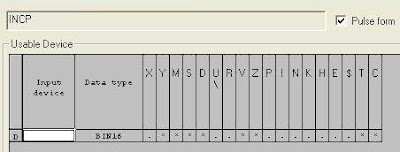
a.If X000 = ON Then Increment D0 (INCP / Increment Pulse ).

Step 2 :
a.If D0 = 0 Then M0 = ON.
b.If D0 = 1 Then M1 = ON.
c.If D0 = 2 Then M2 = ON.
d.If D0 = 3 Then M3 = ON.
e.If D0 = 4 Then M4 = ON.
f.If D0 = 5 Then M5 = ON.
g.If D0 = 6 Then M6 = ON.
h.If D0 = 7 Then M7 = ON.
i.If D0 = 8 Then M8 = ON.
j.If D0 = 9 Then M9 = ON.

Step 3 :
a.If M0 = ON Then Y000 = ON And Y001 = ON And Y002 = ON And Y003 = ON And Y004 = ON And Y005 = ON.
b.If M1 = ON Then Y001 = ON And Y002 = ON.
c.If M2 = ON Then Y000 = ON And Y001 = ON And Y003 = ON And Y004 = ON And Y006 = ON.
d.If M3 = ON Then Y000 = ON And Y001 = ON And Y002 = ON And Y003 = ON And Y006 = ON.
e.If M4 = ON Then Y001 = ON And Y002 = ON And Y005 = ON And Y006 = ON.
f.If M5 = ON Then Y000 = ON And Y002 = ON And Y003 = ON And Y005 = ON And Y006 = ON.
g.If M6 = ON Then Y000 = ON And Y002 = ON And Y003 = ON And Y004 = ON And Y005 = ON And Y006 = ON.
h.If M7 = ON Then Y000 = ON And Y001 = ON And Y002 = ON.
i.If M8 = ON Then Y000 = ON And Y001 = ON And Y002 = ON And Y003 = ON And Y004 = ON And Y005 = ON And Y006 = ON.
j.If M9 = ON Then Y000 = ON And Y001 = ON And Y002 = ON And Y003 = ON And Y005 = ON And Y006 = ON.

Please Download Programming for GX Developer :
Seven Segment Display With PLC Mitsubishi

See : Seven Segment Display

The Problems of Allen-Bradley Serial Communication Software


The known problems with the Allen-Bradley serial communications software are listed below:
1.Reboot
If the software has successfully linked with the 1785-KE module and is then rebooted, it crashes after iocInit with an assertion failure. A second reboot will succeed. Then problem seems to be linked to reception of a DF1 message before the software is ready to handle it.

2.PLC-2 type unprotected writes
The original source code has been modified by the Gemini project to use unprotected write rather than protected writes. The original source code communicated with 1771-KG and PLC-2 modules, rather than with the 1785-KE and PLC-5/20 modules of the Gemini project.

3.PLC-2 type Addresses
The PLC-5 module accepts PLC-2 type addresses, as long as the processor has a compatibility file with the same node number as the 1785-KE. Only memory inside this data is accessible using the PLC-2 type addresses.

4.Error Messages
Error messages from the drivers have not been installed into the VxWorks error message symbol table. The serial driver drvSerial uses error code 1000 and the drvAbDf1 uses error code 1001, although either of these can be changed in the include file if a conflict occurs.
DrvSerial error messages are:
DrvSerial
drvAbDf1 error messages are:
drvAbDf1

Seven Segment Display With PLC Keyence


PLC Type KV Keyence , Name Input / Output PLC :

INPUT PLC :
0000 ; Push Button Switch ( without lock ).

OUTPUT PLC :
0500 ; OUT0 or Seven Segment A.
0501 ; OUT1 or Seven Segment B.
0502 ; OUT2 or Seven Segment C.
0503 ; OUT3 or Seven Segment D.
0504 ; OUT4 or Seven Segment E.
0505 ; OUT5 or Seven Segment F.
0506 ; OUT6 or Seven Segment G.

PLC Programming for Seven Segment Display With PLC Keyence

Reading Ladder PLC Programming for Seven Segment Display with PLC Keyence :

Step 1 :
Increments the memory data specified by the operand by 1
a.If 0000 = ON Then Increment DM0000 ( @INC / Differentiate Up).

Step 2 :
a.If DM0000 = 0 Then 1000 = ON.
b.If DM0000 = 1 Then 1001 = ON.
c.If DM0000 = 2 Then 1002 = ON.
d.If DM0000 = 3 Then 1003 = ON.
e.If DM0000 = 4 Then 1004 = ON.
f.If DM0000 = 5 Then 1005 = ON.
g.If DM0000 = 6 Then 1006 = ON.
h.If DM0000 = 7 Then 1007 = ON.
i.If DM0000 = 8 Then 1008 = ON.
j.If DM0000 = 9 Then 1009 = ON.

Step 3 :
a.If 1000 = ON Then 0500 = ON And 0501 = ON And 0502 = ON And 0503 = ON And 0504 = ON And 0505 = ON.
b.If 1001 = ON Then 0501 = ON And 0502 = ON.
c.If 1002 = ON Then 0500 = ON And 0501 = ON And 0503 = ON And 0504 = ON And 0506 = ON.
d.If 1003 = ON Then 0500 = ON And 0501 = ON And 0502 = ON And 0503 = ON And 0506 = ON.
e.If 1004 = ON Then 0501 = ON And 0502 = ON And 0505 = ON And 0506 = ON.
f.If 1005 = ON Then 0500 = ON And 0502 = ON And 0503 = ON And 0505 = ON And 0506 = ON.
g.If 1006 = ON Then 0500 = ON And 0502 = ON And 0503 = ON And 0504 = ON And 0505 = ON And 0506 = ON.
h.If 1007 = ON Then 0500 = ON And 0501 = ON And 0502 = ON.
i.If 1008 = ON Then 0500 = ON And 0501 = ON And 0502 = ON And 0503 = ON And 0504 = ON And 0505 = ON And 0506 = ON.
j.If 1009 = ON Then 0500 = ON And 0501 = ON And 0502 = ON And 0503 = ON And 0505 = ON And 0506 = ON.

Please Download Programming for KV Builder :
Seven Segment Display With PLC Keyence

See : Seven Segment Display

Allen-Bradley PLC Serial Communication


The VME computer can communicate to the Allen-Bradley PLC through an A-B serial communications module located in an Allen-Bradley rack. The module is the 1785-KE allows the VME computer to act as a node on the data highway plus.
communicate Allen-Bradley PLC
There are 5 layers in the serial communications of Allen Bradley PLC:
1. Physical Layer, there are three essential hardware elements needed for the PLC communications. They are:
• 1785-KE Module, It is a communications interface that links an intelligent RS-232-C asynchronous device
to an Allen-Bradley Highway Plus Network.
• VME Serial Port, Any serial port on a VME computer may be used to communicate with A-B 1785-KE module.
• Serial Cable, The RS-232-C serial cable connects the 1785-KE serial port.

2. Data Link Layer, Communications between the 1785-KE module and the VME serial port are through the RS-232-C protocol, including full duplex and hardware handshaking. There are two layers.
• Serial Port Driver
• EPICS drvSerial

3. Network Layer, The DF1 protocol provides the network, transport, and session layers of the OSI layers. They are including:
• EPICS drvAbDf1
• Writing to the PLC
• Reading from the PLC

4. Presentation Layer, the presentation layer of the PLC communications interface EPICS records with the network layer support provided by drvAbDf1.
• Common EPICS Record files
• Analog Input Records
• Analog Output Records
• Binary Inputs Record
• Binary Outputs Record
• Multi-bit Binary Input Records
• Multi-bit Binary Output Records

5. Application Layer, An EPICS database provides the application layer of the OSI model.

AutoSave Supports for Omron CX Programmer


AutoSave’s Microsoft Windows-based client application is fully integrated with Omron CX-Programmer editor to offer you both an interactive environment and background monitoring, resulting in a comprehensive change management solution. You have complete control over your device programs including:
• Secure Editor Launch for online and offline edit.
• Historical tracking and audit trails.
• Automatic change notification.
• Quick disaster recovery.

The AutoSave Omron CX Programmer module is comprised of the AutoSave client installed on a Windows 2000 or XP workstation and AutoSave server acting as the master control center that coordinate all change related programming activities and stores program files, and an agent providing distributed processing efficiencies for the server.

All necessary Omron CX-Programmer program files are saved as a complete unit and restored to the client or agent whenever needed for subsequent use.

The Graphical User Interface (GUI) based client interface allows user to access the AutoSave function with login and password. At login, the AutoSave server determines the level of access to the different areas and program that are permitted to the user and the client PC.

Communications are accomplished via Ethernet for the client, agent and server. Device communications are established within the Omron project itself. AutoSave simply launch the application and the user handles the communication navigations.

Mini PLC Memory Addressing


This addressing reference will help you to specify the address in memory of mini PLC-2 family of processors. For each PLC-2 processors it can alter the factory configuration of memory. For each PLC-2 processor, each word of memory has the PLC data type of unsigned word. Below is the table that shows memory maps of PLC-2/30.

memory maps of PLC-2/30

Notes for above table:
1. If not configured for output image table can be used for storage or timer/counter accumulated values.
2. Bits in this word are used by the processor for battery low condition, message generation and data highway.
3. If not configured for input image table, can be used for storage or timer/counter preset values.
4. In remote I/O system, bits in words 125 and 126 indicate remote I/O rack status. Or indicate that the size of this section is adjustable.

All data in PLC-2 memory is stored in 16-bit words. You address this data by word number and (optionally) bit number. You must express word and bit numbers in octal form. The general format for data table addresses as below:
general format

The general format for I/O image table addresses as below:
general format for I/O

The format of structure of timer accumulated value word as below:
format of structure of timer accumulated

The format of structure of timer preset value word as below:
format of structure of timer preset

Modicon PLC Addressing I/O


The table below is the lists of the device address ranges that you can enter from Device Address Keypad of Modicon (TCP) Driver. Use the Protocol Configuration dialog box to map the device addresses supported in Modbus PLC to device types listed in the table.
Modbus PLC to device types listed

To speed up data communication, use consecutive device addresses on the same panel screen. The following situations increase the number of times that the device is read, and reduces the data communication speed between that target machine and the PLC:
• When the number of consecutive addresses exceeds the maximum.
• When an address is designed for division.
• When different device types are used.
The maximum number of consecutive addresses that can be read by each PLC as listed in the table below.
addresses PLC

To set up details about the communication process between the target machine and the PLC, you can use the Protocol Configuration.
1. IP Address, Enter the PLC IP Address
2. PLC No, The PLC No is not required for Ethernet communication
3. Start Address, PLC manufacturers may use different address ranges for their particular PLCs.
4. Coils, Define the start address for Coils as supported on your PLC.
5. Discrete Inputs, Define the start address for discrete inputs as supported on your PLC.
6. Input Registers, Define the start address for input registers as supported on your PLC.
7. Holding Registers, Define the start address for Holding Registers as supported on your PLC.

Mini Programmable Logic Controllers


Mini Programmable Logic Controller is a PLC for open loop and closed loop control tasks. To save costs and increase functionality, mini PLC is increasingly being employed in areas that previously required special electronics.

Mini PLC is offering maximum performance with minimum cost. It is extremely simple installation and programming. The hardware is rugged, compact plastic housing it can be space saving. It is more economical to use mini PLC because even for small processes and machine where PLCs have not been used in the past.

Mini PLC is applicable in various industries environment such as:
• Machineries
• Food industries
• Electrical installations
• Laboratories
• Elevators
• Hydraulic lifts
• Gate controls
• Etc

The technical specifications of mini PLC as following:
• Power Supply 24V DC 1100mA
• Digital Inputs 24V DC 10mA
• Digital Outputs 24V DC 500mA
• Analog Inputs 0 to 5V DC 0 to 20mA
• Analog Outputs 0 to 5V DC 0 to 20mA
• Internal Relay (bit memories) 4096 F + 4096 M

Mini PLC is usually can be stored in storage temperature at 0 to 75 deg C. The program memory can reach to 42 Kbytes. And the back up time is every 150 days. Then the battery life time of mini PLC can be stayed until 10 years.

Common Cathode Seven Segment to PLC


The physical appearance of the seven segments
seven segment
Definition of common Cathode seven segment with Light Emitting Diode (LED)
common Cathode seven segment
Internal Circuit Diagram of common Cathode seven segment
Internal Circuit common Cathode seven segment

Wiring Diagram of common Cathode seven segment with PLC Output

Wiring Diagram seven Cathode segment with PLC
See : Display Seven Segment

Common Anode Seven Segment to PLC


The physical appearance of the seven segments
seven segment
Definition of common anode seven segment with Light Emitting Diode (LED)
common anode seven segment
Internal Circuit Diagram of common anode seven segment
Internal Circuit common anode seven segment

Wiring Diagram of common anode seven segment with PLC Output

Wiring Diagram anode seven segment with PLC
See : Display Seven Segment

PLC Input Devices


A programmable logic controller consists of the following components:
• Central Processing Unit (CPU)
• Memory
• Input devices
• Output device
• Power supply

The components that will discuss in this article are PLC Input Device. A PLC is a control device. It takes information from inputs and makes decisions to energize or de-energized outputs. The decisions are made based on statuses of inputs and outputs and the ladder logic program that is being executed.

The input devices used with a PLC include pushbuttons, limit switches, relay contacts, photo sensors, proximity switches, temperature sensors, etc. these input devices can be AC or DC. The input voltages can be high or low. The input signals can be analog or digital. Differing inputs require different input modules. An input module provides an interface between input devices and a PLC’s CPU, which is only use low DC voltage.

The input module’s function is to convert the input signals to DC voltages that are acceptable to the CPU. Standard discrete input modules include 24V AC, 48V AC, 120V AC, 220V AC, 24V DC, 48V DC, 120V DC, 220V DC, and Transistor-transistor Logic (TTL) level.

The devices controlled by a PLC include relays, alarms, solenoids, fans, lights, and motor starters. These devices may require different levels of AC or DC voltages.

Display Seven Segment with PLC


Simulation Display Seven Segment

Display Seven Segment


Detail Display Seven Segment with PLC

Display Seven Segment
Information on Drawing Numbers for Display Seven Segment with PLC :
1. Push Button Switch ( without lock )
2. One Display Seven Segment
3. PLC or Programmable Logic Controller

PLC Wiring Diagram for 7 Segment :
1. common anode seven segment to plc
2. common cathode seven segment to plc


Number Of Inputs and Output PLC applied :
1. Number Of Inputs PLC is 1 Input :
--- 1 Unit Input for Push Button Switch ( without lock ).
--- Total Number Of Inputs PLC is Minimum 1 Input Unit.

2. Number Of Output PLC is 7 Output :
--- 7 Unit Output for Seven Segment.
--- Total Number Of Outputs PLC is Minimum 7 Output Unit.

Diagram 7 Segment and PLC Output

Seven Segment and PLC Output
Numeric Seven Segment from 0 to 9

Numeric Display Seven Segment

Sequence PLC Programming for Display Seven Segment :

Numeric Display 0
0. If Data Memory = 0 Then Display Seven Segment = 0. PLC OUTPUT : OUT0=ON, OUT1=ON, OUT2=ON, OUT3=ON, OUT4=ON, OUT5=ON, OUT6=OFF
Numeric Display 1
1. If Push Button Switch = ON (Push-1) Then Data Memory = 1 And Display Seven Segment = 1.
PLC OUTPUT : OUT0=OFF, OUT1=ON, OUT2=ON, OUT3=OFF, OUT4=OFF, OUT5=OFF, OUT6=OFF

Numeric Display 2
2. If Push Button Switch = ON (Push-2) Then Data Memory = 2 And Display Seven Segment = 2.
PLC OUTPUT : OUT0=ON, OUT1=ON, OUT2=OFF, OUT3=ON, OUT4=ON, OUT5=OFF, OUT6=ON

Numeric Display 3
3. If Push Button Switch = ON (Push-3) Then Data Memory = 3 And Display Seven Segment = 3.
PLC OUTPUT : OUT0=ON, OUT1=ON, OUT2=ON, OUT3=ON, OUT4=OFF, OUT5=OFF, OUT6=ON

Numeric Display 4
4. If Push Button Switch = ON (Push-4) Then Data Memory = 4 And Display Seven Segment = 4.
PLC OUTPUT : OUT0=OFF, OUT1=ON, OUT2=ON, OUT3=OFF, OUT4=OFF, OUT5=ON, OUT6=ON

Numeric Display 5
5. If Push Button Switch = ON (Push-5) Then Data Memory = 5 And Display Seven Segment = 5.
PLC OUTPUT : OUT0=ON, OUT1=OFF, OUT2=ON, OUT3=ON, OUT4=OFF, OUT5=ON, OUT6=ON

Numeric Display 6
6. If Push Button Switch = ON (Push-6) Then Data Memory = 6 And Display Seven Segment = 6.
PLC OUTPUT : OUT0=ON, OUT1=OFF, OUT2=ON OUT3=ON, OUT4=ON, OUT5=ON, OUT6=ON

Numeric Display 7
7. If Push Button Switch = ON (Push-7) Then Data Memory = 7 And Display Seven Segment = 7.
PLC OUTPUT : OUT0=ON, OUT1=ON, OUT2=ON OUT3=OFF, OUT4=OFF, OUT5=OFF, OUT6=OFF

Numeric Display 8
8. If Push Button Switch = ON (Push-8) Then Data Memory = 8 And Display Seven Segment = 8.
PLC OUTPUT : OUT0=ON, OUT1=ON, OUT2=ON OUT3=ON, OUT4=ON, OUT5=ON, OUT6=ON

Numeric Display 9
9. If Push Button Switch = ON (Push-9) Then Data Memory = 9 And Display Seven Segment = 9.
PLC OUTPUT : OUT0=ON, OUT1=ON, OUT2=ON, OUT3=ON, OUT4=OFF, OUT5=ON, OUT6=ON

Numeric Display 0
0. If Push Button Switch = ON (Push-10) Then Data Memory = 0 And Display Seven Segment = 0. PLC OUTPUT : OUT0=ON, OUT1=ON, OUT2=ON, OUT3=ON, OUT4=ON, OUT5=ON, OUT6=OFF

Table Numeric Seven Segment versus PLC Output

Numeric Display versus PLC Output
Download Simulation Display Seven Segment :
Please Click : Display Seven Segment


Can You make Program Ladder PLC ?

If Can't :

Seven Segment Display With PLC Omron

Seven Segment Display With PLC Mitsubishi

Seven Segment Display With PLC Keyence

Mitsubishi FX 24m PLC Programming


A variety of tools are available to program the Mitsubishi FX family of PLCs. Programming tools operating old system software can not access the new features added to the FX CPU from version 3.07 and available on all FX2C units. Programming certain standard applied instructions in conjunction with special auxiliary coils (M coils) can achieve the same effective instruction as the new instructions. The following table will identify the instruction.
program Mitsubishi FX

To program new Interrupt Pointers I010 through I060 in to the HSCS (FNC 53) instruction with older programming equipment, substitute the following special M codes for the appropriate Interrupt Pointer.
Interrupt Pointers

With old software and peripheral, file registers can not be used as a destination device in the BMOV (FNC 15) instruction. To BMOV data into file registers with old equipment set special M coil M8198 on. This switch source and destination parameters, the source is then treated as the destination and the destination becomes the source.

The introduction of this CPU provides the FX user with many new devices and instructions. To use the full features of the FX2N(C) units the user must upgrade older software and hardware programming tools. However, because of the downward compatibility of the FX2N(C), it is not necessary to upgrade existing programming tools for use with FX2N(C) units up to equivalent functionality of FX CPU version 3.30 units.
programming tools

Push ON Push OFF With Data Memory PLC Keyence


PLC Type KV Keyence , Name Input / Output PLC :

INPUT PLC :
0000 ; Push Button Switch ( without lock ).

OUTPUT PLC :
0500 ; Lamp.


PLC programming for Push ON Push OFF With Data Memory PLC Keyence :
Push ON Push OFF


Reading Ladder PLC Programming for Push ON Push OFF with Data Memory PLC Keyence :

Step 1 :
Push ON , Lamp ON
a.If 0000 = ON Then Increment DM0000 ( @INC / Differentiate Up) And DM0000 = 1.
b.If DM0000 = 1 (CMP #1) Then 0500 = ON.
c.If 0000 = OFF Then DM0000 = 1 And 0500 = ON .

Step 2 :
Push ON, Lamp OFF
a.If 0000 = ON Then Increment DM0000 (Differentiate Up) And DM0000 = 2.
b.If DM0000 = 2 (LDA DM0000 And CMP #2) Then DM0000 = 0 (DW #00000 DM0000).
c.If DM0000 = 0 Then 0500 = OFF.
d.If 0000 = OFF Then DM0000 = 0 And 0500 = OFF .

Please Download Programming for KV Builder :
Push ON Push OFF With Data Memory PLC Keyence

See : Push ON Push OFF

LDA instructions on Keyence PLC


LDA instructions on Keyence PLC: Load A (Accumulator)
Inputs the value specified by the operand to [Acc (internal register)].
* The current value is input to [Acc] when a timer/counter is specified to the operand.
LDA instructions
Examples of the use of LDA instructions :
LDA ladder keyence
1. If Actual Value the C000=1 then Acc=1 (LDA=1).
2. If Actual Value the C000=2 then Acc=2 (LDA=2).
3. If Actual Value the C000=3 then Acc=3 (LDA=3), etc

INC instructions on Keyence PLC


INC instructions on Keyence PLC : Increment memory
Increments the memory data specified by the operand by 1.
INC instructions
Examples of the use of INC instructions :
INC ladder keyence
1. If 0000=OFF then Value in DM0000=0.
2. If 0000=ON then Value in DM0000=1.
3. If 0000=OFF then Value in DM0000=1.
4. If 0000=ON then Value in DM0000=2.
5. If 0000=OFF then Value in DM0000=2.
Sponsored Links :

ALL ARTICLES
SUBSCRIBE BY EMAIL:

Delivered by FeedBurner


PLC Simulation Update

Popular Posts

Free Download PLC

Custom Search
Copyright © PLC Ladder